
Managing Your Lookr Library and Offline Videos
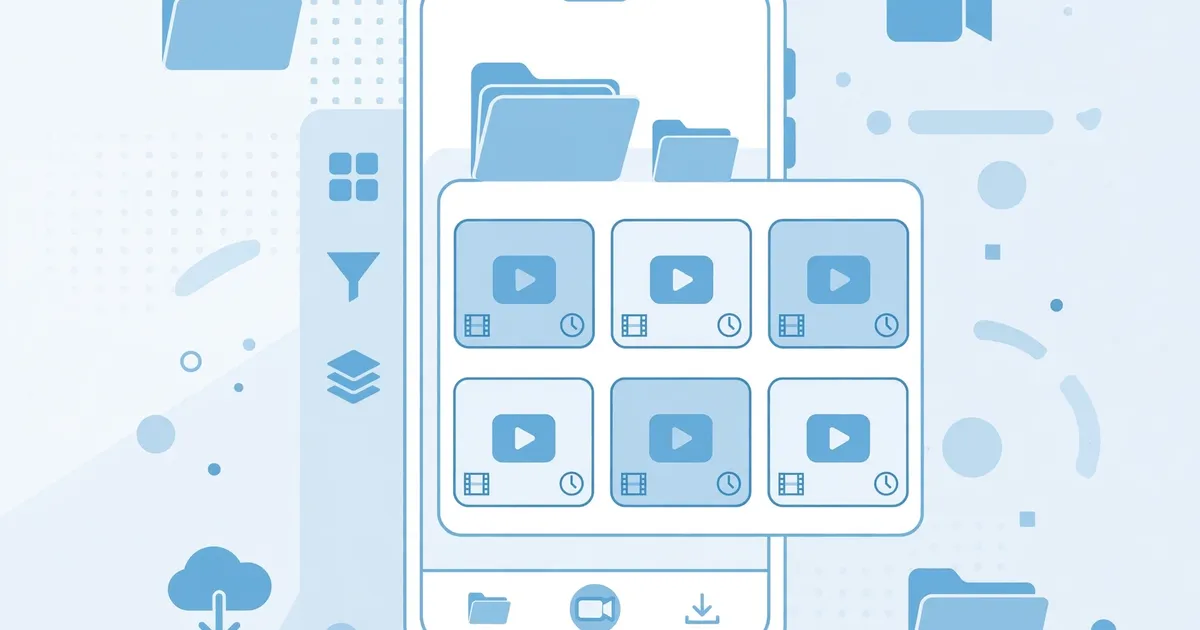
The Library tab is where Lookr keeps everything you have saved and downloaded, your offline collection. It is simple by design, but a few habits keep it fast and prevent it from eating your storage.
Key takeaways: Downloads appear in Library and in shared storage. Delete from within the app to remove both cleanly. Back up favorites before clearing app data.
Where files actually live
Downloaded videos save to shared storage, which means they appear in the Library tab and are also visible to file managers and gallery apps. This is convenient, and it means deleting from a file manager also removes them from the Library view.
Deleting without regrets
Delete from inside the Library tab when possible so the app's index stays consistent. For bulk cleanup, sort your file manager by size and remove the biggest files you no longer need. If downloads ever fail, a full storage is worth checking first.
Keeping offline viewing smooth
Very long videos play best when fully downloaded before you hit play, rather than streaming the tail. If playback stutters on an offline file, the file may have truncated during download; delete and re-download on stable Wi-Fi.
Before you clear app data
Clearing cache is always safe. Clearing data resets the app, and while shared storage videos usually survive, anything the app indexed privately may not. Copy true favorites to a separate folder first, a thirty second insurance policy.